What is this?
This page demonstrates a technique for adding (a) a lightbox and (b) alt-text visibility to <figure>s, using pure CSS. It aims to
be lightweight, responsive, and accessible. The relevant code can be viewed in figures.css, or just use your browser's
developer tools to inspect the page (taking care to pay attention to the interactive details[open] selector and the the conditional
::after pseudo-elements).
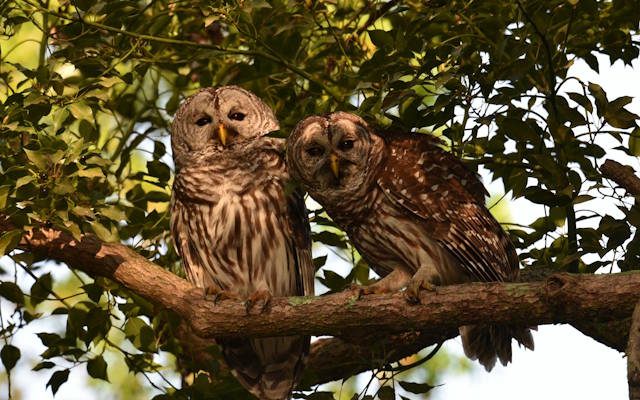
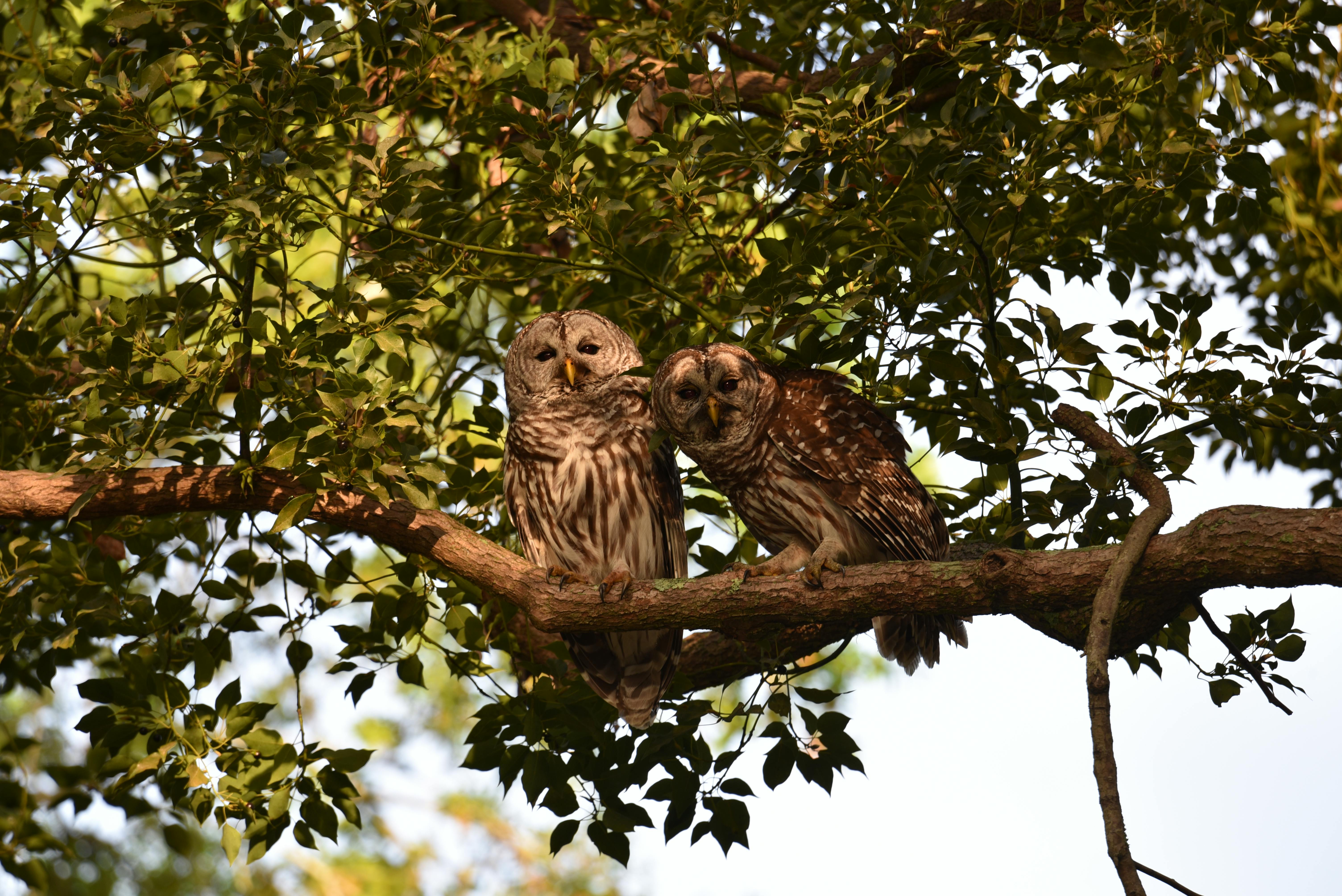
To see it in action, click on the image of the owls to see a larger version in a lightbox popup, or click on the "Alt" button to display the alt text.
Alt
A pair of barred owls rest in the shade of a leafy deciduous tree in the afternoon light.
How it works
The key to this technique is the <details> element. It's a native HTML element that allows you to create an interactive widget that
can be opened and closed, intended for displaying <summary> content and hiding the full details unless requested. This is a
semantically-valid use of the element, because we really are displaying "more" information about the image (or its alt text) at the user's
request.
The thumbnail image is wrapped in a <summary> element; clicking it displays a span containing the full image. CSS is used to style
this as a full-screen "popup", with body:has(.lightbox[open]) giving overflow: hidden; to prevent scrolling of the page and a
.lightbox[open] summary::after which provides a faded-out background (which, because it's part of the summary, can still be clicked to
close the lightbox).
The alt text works in a similar way, but the .img-with-alt-text wrapper's position: relative; and the
<details class="alt-text">'s work together to position the alt text and its button as an "overlay" to the image. The inner
<summary> is repositioned "over" the paragraph, when it's open, to facilitate clicking anywhere on the text to close it. This
unfortunately makes it hard to select the alt text e.g. to copy it to the clipboard, but otherwise it works well.
Because it's implemented in CSS, it's highly-performant and works even where JavaScript is disabled or otherwise fails. And because it's implemented using semantic HTML, it also works acceptably well even if your CSS is disabled, so you can celebrate Naked CSS Day if you like!
Using it in practice
There's a surprising amount of duplication in the HTML code - the alt text appears a total of three times, for example - and so the technique is probably most-suitable for dynamically-generated content (e.g. from a CMS or SSG): writing this all out by hand every time would be a pain! And using JavaScript to enhance images would somewhat undermine the benefits of this pure-CSS solution (although the CSS would still give better performance than JavaScript event listeners).
Credit, license, & inspiration
This code was written by me, Dan Q, as part of a redesign of my personal website planned for 2026. It is released into the public domain under the UNLICENSE: you can do whatever you want with it without limitation or restriction. If you want to tell me how you're using it, though, I'd love to hear about it (perhaps leave a comment on this blog post or drop me an email!
I previously described the lightbox technique on my blog
after using it to replace a different CSS-only solution that used anchor links and the
<dialog> element.
The alt-text "button" was inspired by James' checkbox-based approach to doing the same thing, which in turn was inspired by Mastodon's UI (which uses JavaScript).